
How to Add Visuals to Your DJ Set on Mac
The booth is set up. Your tracks are loaded. The mixer feels right. But the screen behind you is either dark or playing the venue's default visuals — and that's a missed opportunity. Adding visuals to a DJ set used to mean a second laptop, a dedicated VJ, and a crash course in Resolume. It's 2026. You can run visuals from the same Mac you're DJing on, synced to your tracks, controlled from your mixer or controller, without needing a degree in visual performance.

The DJ Visual Setup: What You're Actually Trying to Do
Let's be specific about the goal. You're in a booth. There's a projector or LED wall behind you. You want visuals that:
React to the music coming out of your mixer
Stay in sync when you beatmatch or change tempo
Can be controlled without taking your hands off the mixer for more than a second
Don't require a second person or a second laptop
Look professional enough for a club, bar, or festival stage
That last one is worth emphasizing. "Visuals" for a DJ set doesn't mean a Winamp visualizer from 2002 blown up to 20 feet. It means audio-reactive generative graphics, shader-driven abstract visuals, or video loops that respond to your mixer output. The bar is higher than it used to be — but the tools have gotten dramatically easier to use.
The Audio Routing Problem (And How to Solve It)
The first challenge: getting audio from your DJ setup into a visual tool without degrading your output.
If you're using a controller with built-in audio interface (DDJ, XDJ, etc.): Your master output goes to the venue sound system. You need a separate feed for visuals. Options:
Booth output → audio interface → Mac → visual tool. Most DJ mixers and controllers have a booth/aux output. Route that to an audio interface connected to the same Mac running your visual software. This gives the visual tool an independent feed without touching the master output.
Record/rec out. Some mixers have a dedicated record output (RCA). Same idea — feed it to an audio interface for the visual tool.
Software routing (if DJing from the same Mac). Use a virtual audio device like BlackHole or Loopback to route audio from your DJ software (Serato, Rekordbox, Traktor, djay) into your visual tool. This is the simplest setup — no cables, no external interface — but adds a small CPU load.
If you're DJing on CDJs with a separate mixer: Use the mixer's booth, rec, or aux output to feed an audio interface on your visual Mac. Many DJs run visuals on a separate laptop, but a modern M-series Mac can handle both DJ software and visuals simultaneously without breaking a sweat.

Getting Visuals Onto the Screen
Once your visual tool is reacting to audio, you need to get the output to the venue's display. A few approaches, from simplest to most robust:
HDMI Direct
If the projector or screen has an HDMI input and you're close enough to run a cable, just connect your Mac directly. Set the external display to extended desktop mode and configure your visual tool to output fullscreen on that display. Simple, zero latency, no network dependency. The only downside: you're tethered by a cable.
Syphon → OBS → Projector
Syphon is a Mac-native protocol for sharing video frames between applications with zero latency. Your visual tool outputs a Syphon stream — any other Syphon-aware app can receive it.
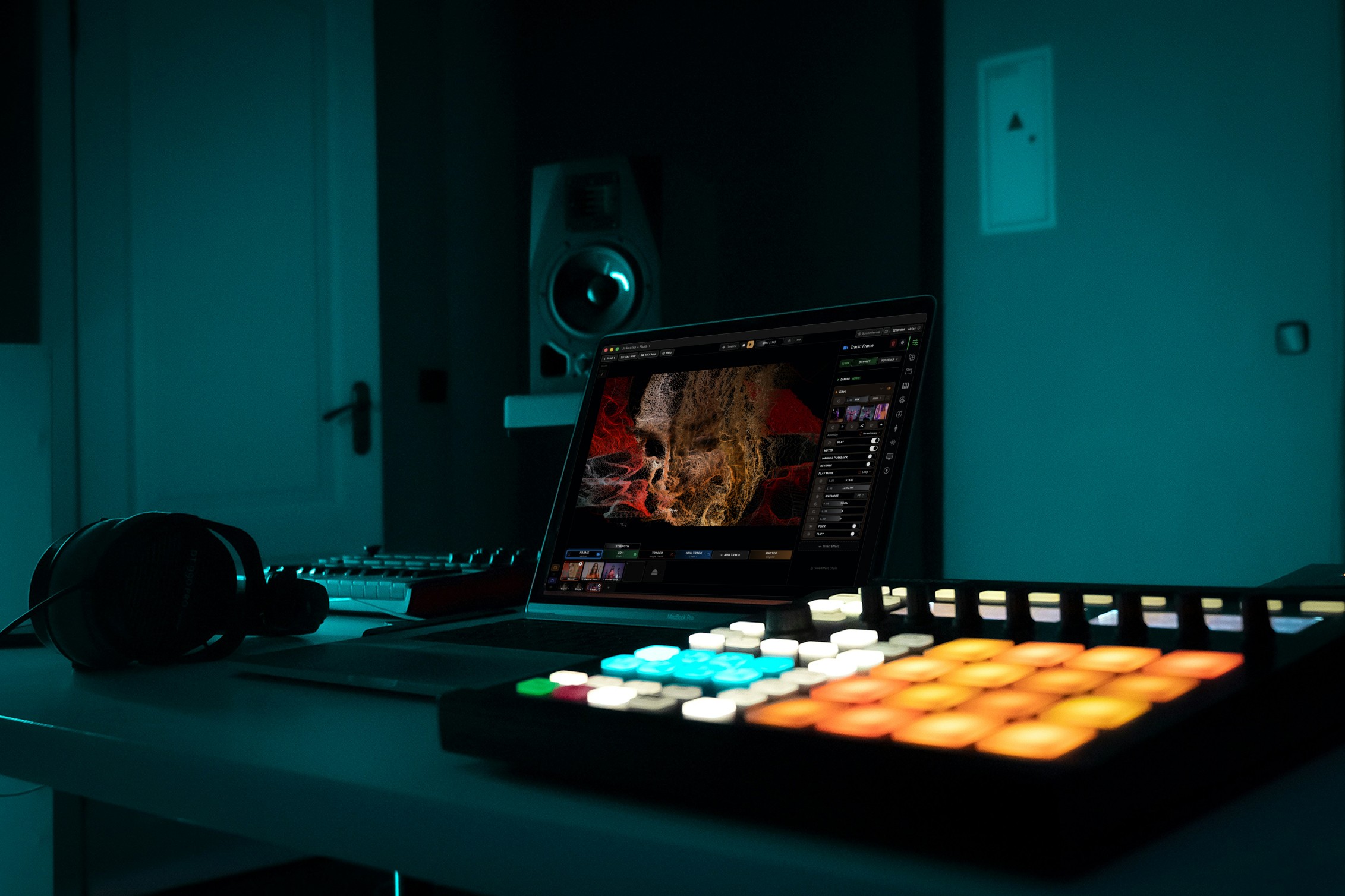
A common setup: Arkestra outputs via Syphon → OBS receives the stream → OBS outputs fullscreen to the projector. OBS gives you an extra layer of control: you can overlay the venue logo, add a subtle vignette, or crossfade between visual sources. It also handles different output resolutions and aspect ratios gracefully.
NDI (Network)
If the projector is far from the booth or you're running visuals on a separate machine, NDI sends video over Ethernet or Wi-Fi. Your visual tool outputs an NDI stream, and the venue's display computer receives it. There's a small latency tradeoff (typically 1-3 frames), but for DJ visuals it's rarely noticeable. NDI is supported in Arkestra Pro.
Syncing Visuals to Your Set
DJ sets change tempo constantly. A visual tool that requires manual BPM entry is a non-starter. Here's what actually works:
Ableton Link
If your DJ software supports Ableton Link (Serato, Rekordbox, Traktor, djay, and Virtual DJ all support it), enable Link and your visual tool locks to the current tempo automatically. As you beatmatch and transition between tracks at different BPMs, the visuals follow. No tapping, no manual entry, no drift.
In Arkestra, Link is enabled by default and discovers your DJ software instantly. Shader parameters can be synced to the beat grid — LFOs cycle in time, effects trigger on the downbeat, scene transitions fire on the bar.
MIDI Mapping Your Controller
Most DJ controllers have spare pads, knobs, or buttons that aren't essential during a set. Map those to visual controls:
Spare pads → scene changes. Map four pads to four visual scenes. Tap a pad on the downbeat — visuals switch instantly.
Spare knobs → effect intensity. A filter knob that controls visual saturation. An FX send that controls particle density. Physical control means you can perform the visuals, not just let them run.
Crossfader → visual blend. If your mixer crossfader sends MIDI (many do), map it to a crossfade between two visual scenes. As you blend between tracks, the visuals blend too.
In Arkestra, any MIDI message can be mapped to any parameter. The mapping interface shows incoming MIDI in real time — wiggle a knob, click the parameter you want it to control, done.

What Kind of Visuals Work for DJ Sets?
Not everything translates well to a club environment. Some guidelines from experience:
Abstract over literal. Generative patterns, shader art, and geometric visuals work better than recognizable imagery. A giant spinning logo gets old in 10 seconds. An evolving fractal never does.
Dark backgrounds, bright elements. A black background with vibrant, reactive elements reads well on LED walls and in dark rooms. White or bright backgrounds wash out the room and compete with stage lighting.
Motion that matches the energy. Slow, drifting visuals for warm-up sets. Fast, strobing, high-contrast visuals for peak time. The visual energy should track the musical energy — and with audio-reactive tools, it does automatically.
Low-frequency reactivity. Kick and bass should drive the most visible visual changes. When the bass hits, the visuals hit. This is what makes a DJ set feel audiovisual rather than "music plus a screensaver."
Recording Your Set with Visuals
Recording a DJ set with synced visuals is straightforward. In Arkestra, the built-in recorder captures the visual output as a video file. Record your set audio through your DJ software's internal recorder, then sync the two in any video editor. Or, for a quick social clip, just record a 60-second section of visuals and pair it with the corresponding audio snippet.
For live streaming (Twitch, YouTube), use Syphon to pipe Arkestra into OBS alongside your DJ software's audio. OBS handles the stream encoding — you get broadcast-quality visuals with zero extra hardware.
Getting Started
You don't need to solve everything at once. Start with the simplest setup and add complexity as you need it:
Download Arkestra (free, no time limit).
Route your DJ audio in — booth output to audio interface, or software routing if DJing from the same Mac.
Enable Ableton Link — visuals lock to your tempo.
Connect to the screen — HDMI direct or Syphon → OBS.
Map a few spare controller pads for scene changes if you want hands-on control.
That's a complete DJ visual rig. One Mac, one cable to the screen, audio-reactive visuals that sync to your set.
Download Arkestra free and test it at your next gig — even if you just run it on your laptop screen to see how it feels.
Read more
Powerful for the Stage, Simple to start today
Arkestra is our flagship application for real-time generative visuals, for VJs, musicians, DJs and creators all around the world