
Audio-Reactive Visuals in Ableton Live — The Musician's Guide
You make music in Ableton Live. You want visuals that move with the sound — not a VJ rig, not a complicated piece of software you need a degree to operate. Just visuals that react to your music, right in the moment. This guide covers every way to get audio-reactive visuals working with Ableton Live, from built-in tools to dedicated visualizers, and shows you the fastest path from pressing play to seeing your music come alive.
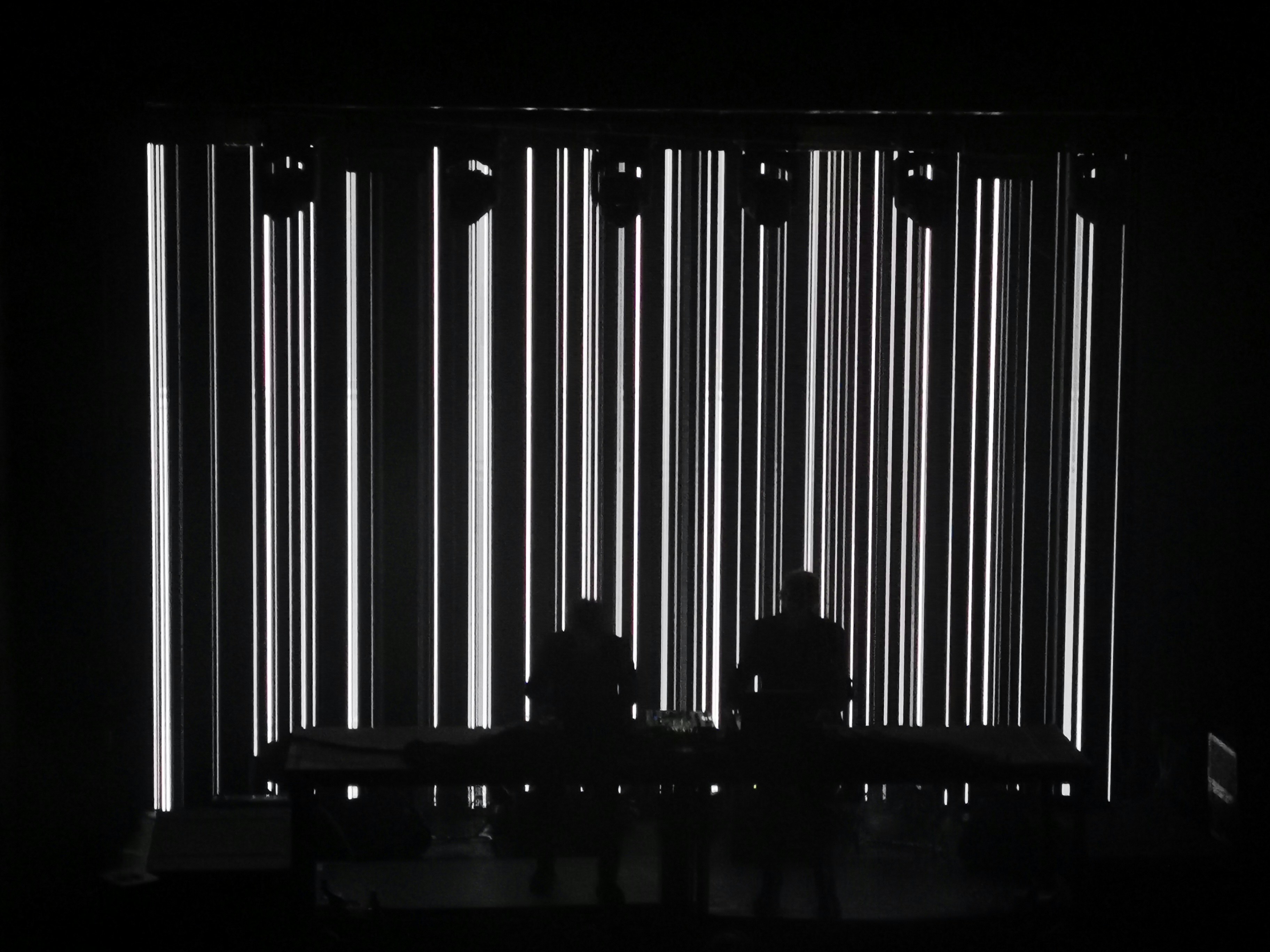
The Problem: You Want Visuals That Move With Your Music
If you produce in Ableton Live, you've probably had this moment: the track is sounding great, the arrangement is coming together, and you think — I'd love to see this. Maybe for a live stream. Maybe for a music video. Maybe just because staring at arrangement view for six hours is getting old.
The good news: there are more ways than ever to get visuals reacting to your Ableton sessions. The less-good news: most of them assume you want to become a VJ in the process.
This guide is written for musicians first — people who live in Ableton, not Resolume. We'll cover every option, from the free and built-in to the dedicated visual tools, ranked by how much musical context they respect.
Option 1: Ableton's Built-in Video Window
Ableton Live has a basic video player built in. Drop a video file into Arrangement View, and it plays in a separate window. You can warp it, loop it, and trigger it with clips.
What it's good for: Scoring to picture, syncing a single video to a track.
What it's not: Audio-reactive in any way. The video plays — that's it. No FFT analysis, no beat detection, no parameter modulation. If you want the visuals to change when the drop hits, you're doing it manually.
Verdict: Fine for film scoring. Not a visualizer.
Option 2: Max for Live Visual Devices
Ableton Suite includes Max for Live, and there are some impressive visual devices built on it:
Geometrum — A geometric visualizer that reacts to incoming audio. Drop it on a track and shapes pulse with the signal. Simple, effective, and included with Suite.
LUMA — A more advanced Max for Live visual device with shader-based rendering. It can produce some genuinely beautiful real-time visuals driven by audio.
Vizzie — Max's modular video system, accessible through M4L. Powerful but requires patching knowledge.
What's good: Tight Ableton integration — these are literally inside your session. No external apps, no routing.
The catch: Performance. Max for Live devices share CPU with your session. Run a heavy visual device alongside your synths and effects, and you'll feel it. Also, the visual output is limited — you're not getting Syphon out, multi-screen support, or recording at quality.
Verdict: Great for sketching and experimentation inside Ableton. Not a performance or recording solution.
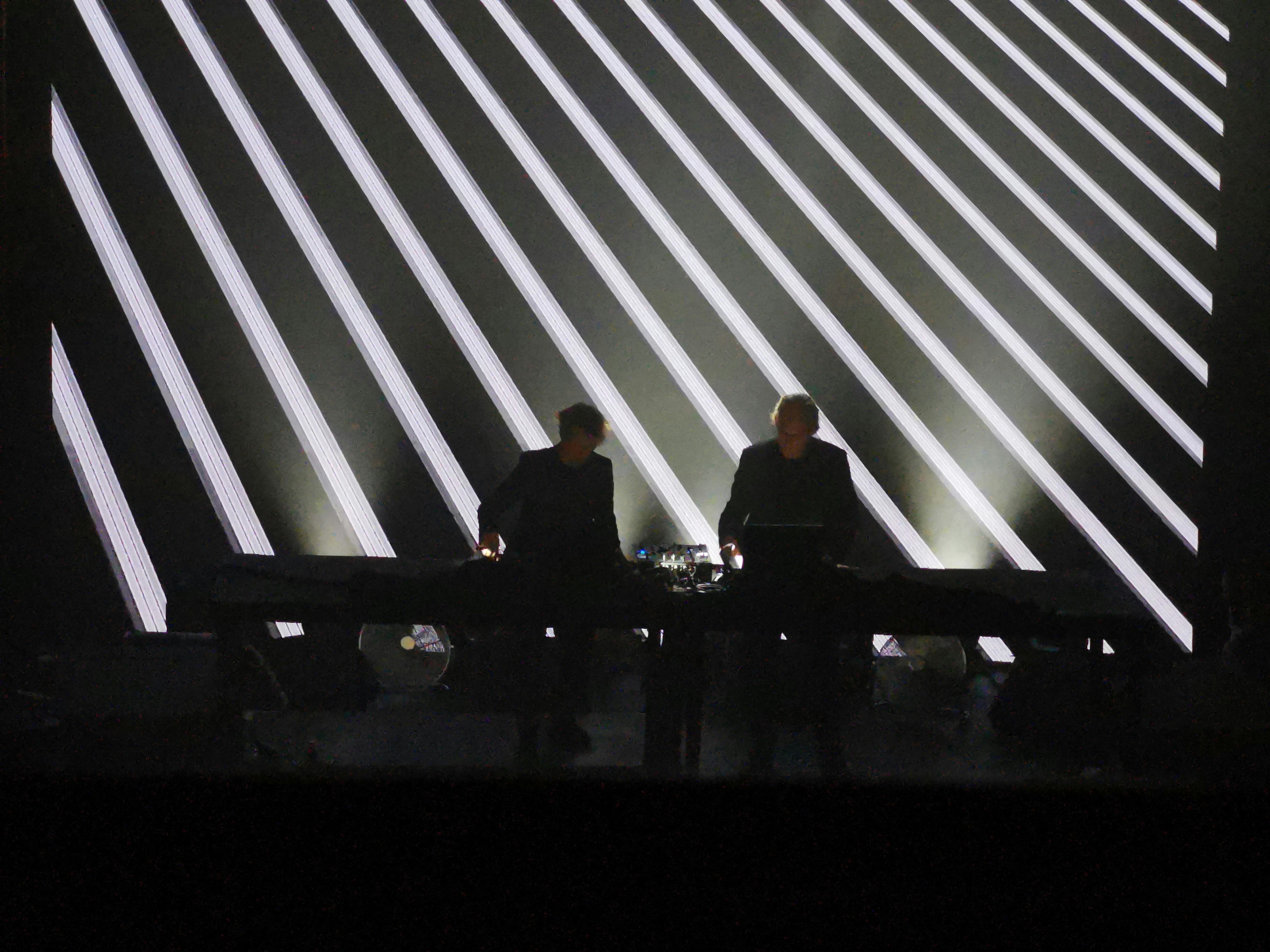
Option 3: Standalone Music Visualizers
A step up: standalone apps that listen to your system audio and generate visuals. These run as separate processes, so they don't compete for CPU inside Ableton.
Phosphor
A $4.99 Mac app that generates audio-reactive particle visuals. It's simple, pretty, and shockingly cheap. Drop it on your system audio and it just works.
Limitations: No MIDI control, no scene changes, no recording above basic quality. It's one visual style — beautiful, but singular. Think of it as a very good screensaver that listens to your DAW.
Ferromatic
A newer audio-reactive visualizer with more visual styles than Phosphor. Clean interface, decent variety of presets, and solid audio analysis.
Limitations: No free tier — paid only. No Ableton Link or MIDI control. Like Phosphor, it's a visualizer, not a performance tool. What you see is what you get.
Synesthesia
A substantial step up. Synesthesia is a dedicated live visual performance tool built around audio reactivity. It offers GLSL shader support, scene switching, and MIDI control.
What's great: Excellent audio analysis, large shader library, designed for live use.
The tradeoffs: The free tier adds a watermark. The interface is built for VJs — if you're coming from Ableton, it's a new paradigm to learn. And at higher price tiers, it competes with tools that offer more.
Option 4: Arkestra + Echo Plugin — Visuals Without Leaving Your Musical Workflow
This is where things get interesting for Ableton users specifically.
Arkestra is a macOS live visual tool built for real-time performance, and it has something no other visualizer offers: an audio plugin called Echo that lives inside Ableton.
Here's the workflow:
Drop Echo on your master track (or any track — drums for beat-reactive visuals, synths for melodic response).
Open Arkestra. The visuals are already moving. Echo sends audio data directly from Ableton to Arkestra — no audio routing, no virtual cables, no system audio hijacking.
That's it. Press play in Ableton. The visuals react.
What makes this different from the other options:
Per-track audio: Echo can go on individual tracks, not just the master. Drum transients drive one visual parameter. Synth pads drive another. Bass frequencies modulate a third. This is audio-reactive at the arrangement level — the way you actually produce music.
Ableton Link sync: Arkestra locks to Ableton's transport via Link. Tempo changes, time signature shifts, start/stop — everything stays in sync. Shader parameters can be BPM-synced, so visual changes land exactly on the beat.
MIDI control without leaving Ableton: MIDI notes and CC from your Ableton clips can trigger visual scene changes, effect switches, and parameter modulations. Automate visuals from the same MIDI data driving your synths.
200+ ISF shaders + AI Studio: Built-in generators, effects, and 3D displacement shaders. If you can't find what you want, type a description into AI Studio and it generates a new shader. No coding required.
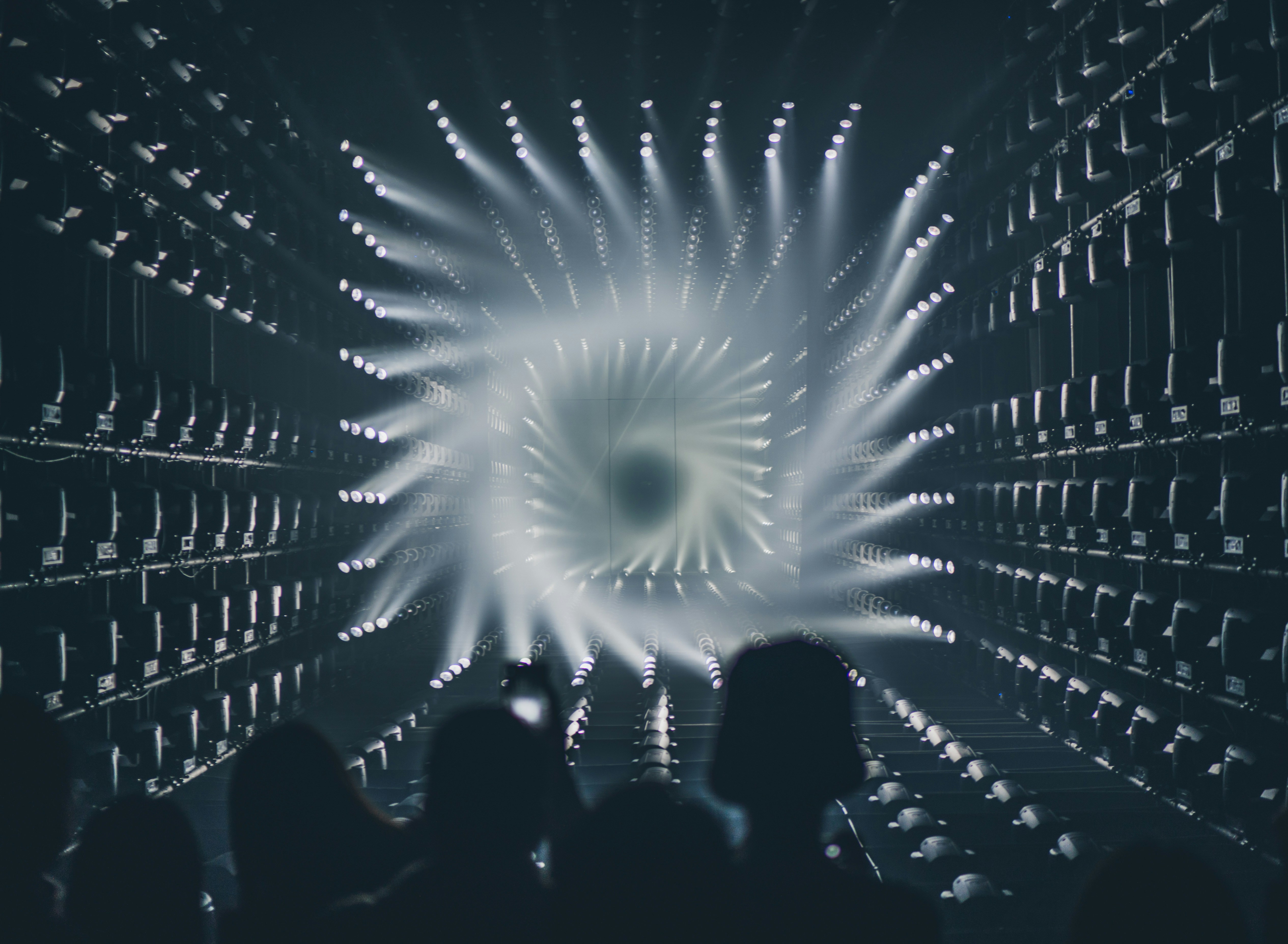
How to Record and Export Visuals With Your Music
Once your visuals are running, you'll probably want to capture them. A few approaches:
Record in Arkestra (Quickest)
Arkestra has built-in recording. Hit record, play your Ableton set, and it captures the visual output as a video file. The free tier records at a lower quality — perfectly fine for social media clips and drafts. Arkestra Pro records at full HD or higher, no watermark.
Syphon to OBS (For Live Streams)
Arkestra outputs via Syphon — a Mac-native protocol for sharing video between apps. Point OBS at Arkestra's Syphon stream, and you've got broadcast-quality visuals for Twitch, YouTube, or any streaming platform. No screen recording, no quality loss.
Syphon to a Video Editor (For Music Videos)
Record Arkestra's Syphon output in an app like Syphon Recorder, then bring the clips into DaVinci Resolve, Final Cut, or Premiere. Sync them to your exported Ableton audio — you've got a music video made entirely from real-time visuals.
Which Option Is Right For You?
|
|
|---|---|
|
|
|
|
|
|
|
|
|
|
The Bottom Line
If you're an Ableton producer who wants visuals without learning VJ software, you have real options now. Start simple — Phosphor for $5 if you just want to see something move. Max for Live devices if you want to stay inside Ableton. Arkestra if you want visuals that respect your musical workflow: per-track audio, transport sync, MIDI from your clips, and the ability to record, stream, and perform with them.
Arkestra is free to try — no watermark, no time limit on the free tier. If you want to record at HD quality or unlock the full shader library, it's $19/month rent-to-own or $199 once.
Read more
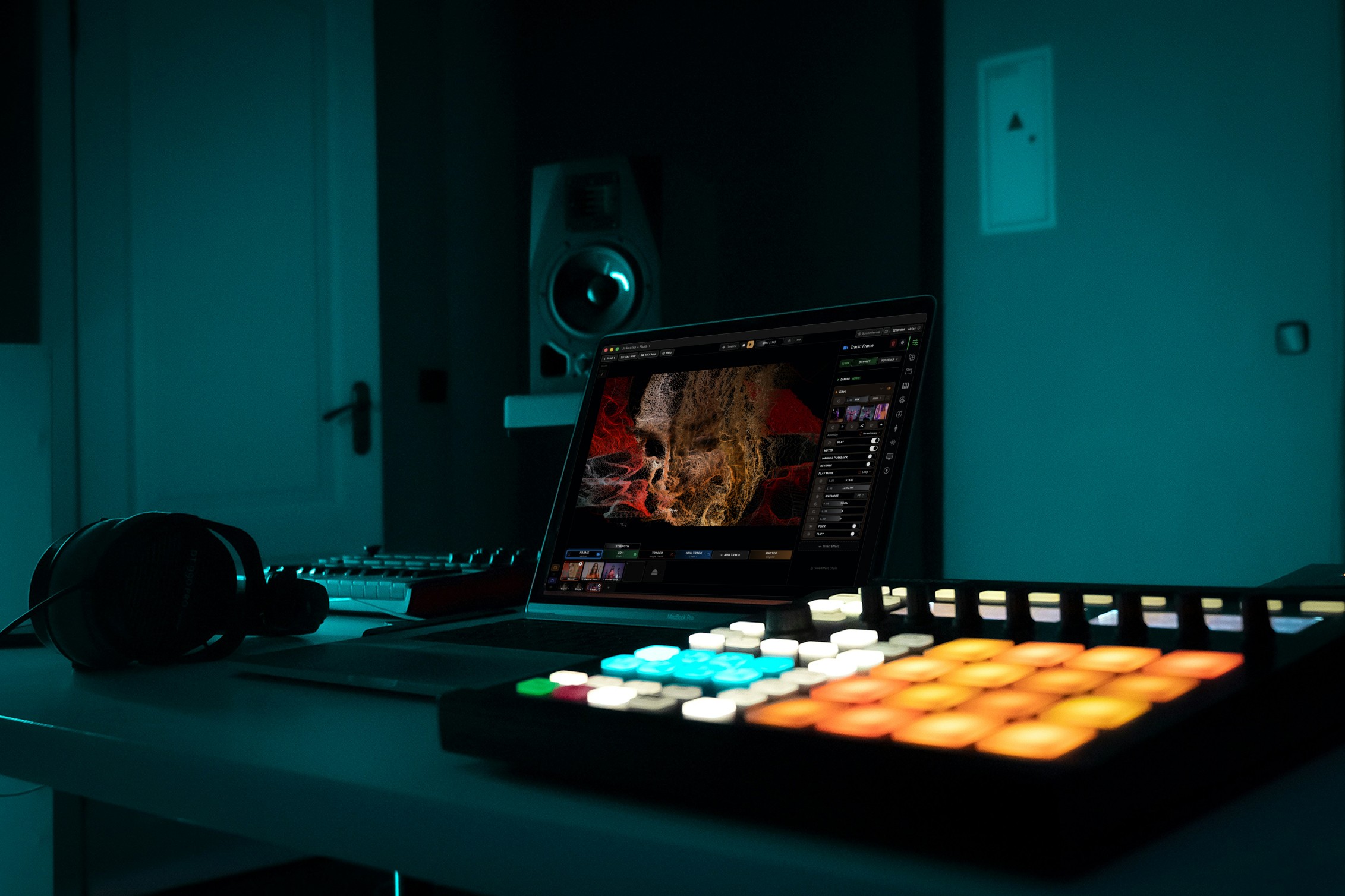
Powerful for the Stage, Simple to start today
Arkestra is our flagship application for real-time generative visuals, for VJs, musicians, DJs and creators all around the world