How to Sync VJ Software With Ableton Live (Step-by-Step)
Synchronizing visuals with music is one of the most effective ways to elevate a live performance. If you’re using Ableton Live and want your visuals to stay rhythmically and dynamically connected, there are several proven ways to sync VJ software with Ableton Live on macOS. This guide walks through the most reliable sync methods, from simple tempo sharing to deeper audio- and controller-driven workflows — including examples of how modern VJ tools like Arkestra approach real-time sync.

Overview: Ways to Sync VJ Software With Ableton Live
Most Ableton + VJ setups rely on one or more of the following:
Ableton Link – shared tempo and phase
Audio routing – visuals react to sound
MIDI control – intentional triggers and modulation
Shared controllers – one interface driving both audio and visuals
The most expressive setups usually combine at least two of these.
Method 1: Sync Tempo With Ableton Link
Best for: Keeping visuals locked to BPM with minimal setup
Ableton Link is the easiest way to sync tempo between Ableton Live and VJ software. It shares BPM and beat phase over the local network, without requiring MIDI clock.
Step-by-Step
Open Ableton Live
Enable Link in the top-left corner
Open your VJ software
Enable Ableton Link in its sync or transport settings
Confirm both apps show the same BPM
Press play in Ableton
Your visuals should now follow tempo changes automatically.
What Link is good at
BPM sync
Beat phase alignment
Jam-friendly performance
What it doesn’t do
Trigger visual events
React to individual instruments
Follow song structure
Method 2: Sync Visuals Using Audio (External Audio Routing)
Best for: Visuals that respond directly to music dynamics
Audio-reactive syncing uses Ableton’s audio output as the control signal for visuals. This is one of the most musical approaches, especially when visuals respond differently to different frequency ranges.
Step-by-Step: Basic Audio-Reactive Setup
Route Ableton’s output to:
A virtual audio device (e.g. BlackHole)
Or a physical output if supported
Select that input in your VJ software
Enable audio analysis (FFT, envelope, beat detection)
Map frequency bands or amplitude to visual parameters
Advanced Audio Sync: Per-Track Audio Reactivity (Arkestra Echo)
Some VJ tools allow separate audio signals per visual track, which offers far more control than reacting to a single stereo mix.
With Arkestra Echo, each Ableton track (or group) can send a clean, isolated audio signal directly into a corresponding visual track in Arkestra.
Why this matters
Drums can drive motion
Bass can drive scale or distortion
Synths can control color or texture
Visuals react to structure, not just volume
Typical setup
Insert Arkestra Echo on Ableton tracks
Route each track’s signal into Arkestra
Assign incoming audio to specific visual tracks
Use per-track audio envelopes for real-time control
This approach avoids the “everything reacts to everything” problem common in basic audio-reactive setups.
Method 3: Audio Analysis With STFT & Envelope Generators
Best for: Precise, stable audio-driven visuals
More advanced VJ software uses STFT (Short-Time Fourier Transform) and envelope generators to analyze audio over time, producing smoother and more controllable signals.
When routing external audio into Arkestra, its STFT envelope generator can be used to extract:
Frequency-specific envelopes
Smoothed amplitude curves
Beat- and transient-like signals
This works especially well when combined with per-track audio routing, giving each visual element its own musical role.
Method 4: Sync Using MIDI (Notes & CC)
Best for: Intentional visual events and structure
MIDI is ideal when you want specific musical moments to trigger visual changes.
Step-by-Step
Enable a virtual MIDI output (IAC Driver) on macOS
Send MIDI notes or CCs from Ableton clips, racks, or automation
Enable MIDI input in your VJ software
Map MIDI messages to:
Scene changes
Effect intensity
Visual parameters
Common MIDI Uses
Scene changes on drops
Effect builds during risers
Color or style switches per section
Method 5: Using the Same MIDI Controller for Ableton and Visuals
Best for: Tight performance control with minimal gear
Another effective approach is using one MIDI controller to control both Ableton Live and your VJ software at the same time.
How This Works
Connect a MIDI controller to macOS
Enable it as an input in both Ableton and your VJ app
Map the same knobs, faders, or pads in both applications
Use one gesture to affect sound and visuals
Example
A filter knob in Ableton also increases visual distortion
A drum pad triggers a clip and a visual hit
A macro controls build-ups across audio and visuals
This creates a strong sense of audiovisual cohesion and reduces the need for separate controllers.
Recommended Hybrid Sync Setup
Many performers use a combination like this:
Ableton Link → tempo & phase
Per-track audio routing → musical reactivity
Shared MIDI controller → performance gestures
This keeps visuals locked in time while still allowing expressive, intentional control.
Common Sync Issues (And Fixes)
Visuals feel out of time
Make Ableton the Link tempo master
Avoid multiple Link sources
Audio-reactive visuals are too jumpy
Use envelope smoothing or STFT-based analysis
Limit how many parameters react to audio
MIDI feels laggy
Lower buffer size
Avoid unnecessary MIDI routing layers
Final Thoughts
Syncing VJ software with Ableton Live isn’t about choosing one method — it’s about choosing the right combination.
Tempo sync keeps everything together, audio reactivity adds musical expression, and shared control brings performance gestures into both sound and visuals. Modern VJ tools increasingly support deeper, more musical sync options, making it easier to treat visuals as part of the instrument rather than an afterthought.
Read more
Powerful for the Stage, Simple to start today
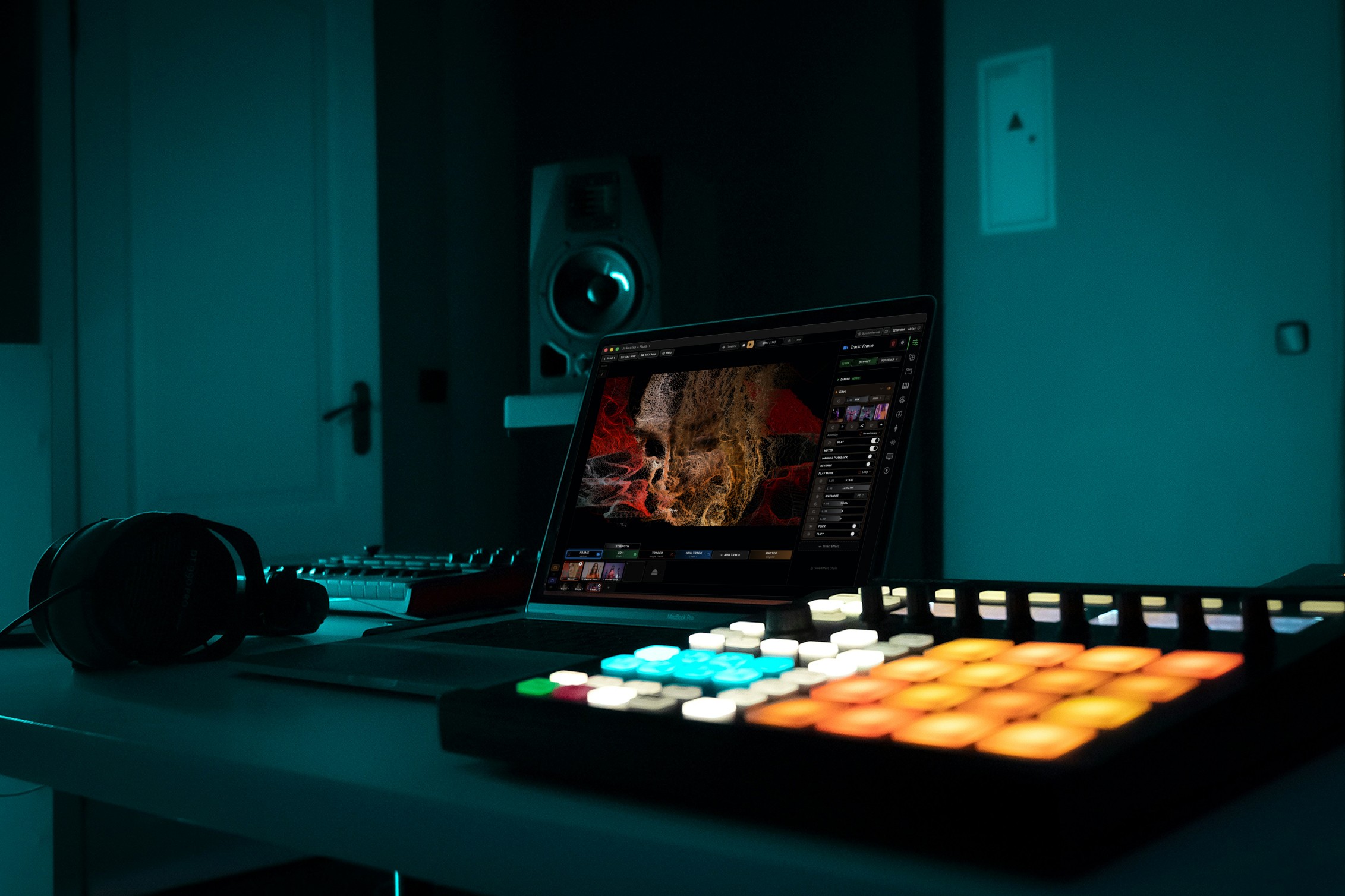
Arkestra is our flagship application for real-time generative visuals, for VJs, musicians, DJs and creators all around the world